![Logo_IMS Technology Group_Final_IMS TG_Logo_Dark Bkg.svg]](https://knowledge.imstechnologygroup.com/hubfs/Logo_IMS%20Technology%20Group_Final_IMS%20TG_Logo_Dark%20Bkg.svg)
Step 1: Open Assignments
Navigate to the Assignments section in FileBound.
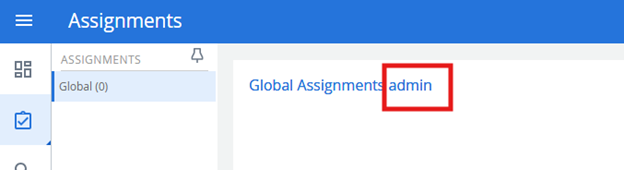
Step 2: Select the User
Select the user to the right of Global Assignments. For example, select admin.
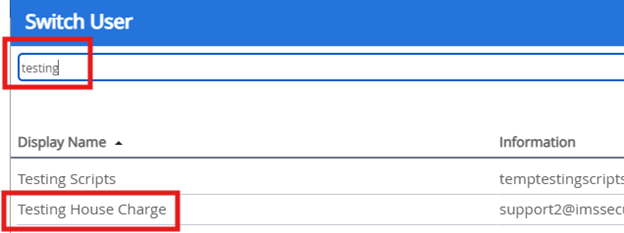
Step 3: Filter by User
Use the filter option to narrow the list by the selected user, then click on their name to confirm the selection.
Step 4: Review and Route Assignments
After selecting the user, their associated assignments will be displayed. From this page, you can route the assignments as needed. Please note that you will need to use the routing options on the assignment page, as they will not appear in the web viewer.
