![Logo_IMS Technology Group_Final_IMS TG_Logo_Dark Bkg.svg]](https://knowledge.imstechnologygroup.com/hubfs/Logo_IMS%20Technology%20Group_Final_IMS%20TG_Logo_Dark%20Bkg.svg)
By passing values for fields in an e-form, you can automatically populate those fields when users access the form through the Forms Portal. This means you can create a link that users can click on to open an e-form with specific user details already filled in.
- Add '?fieldname=value' to the URL of the portal to hide the top header.
For example, to pass value for the name and title field of an e-form https://YourFileBoundSite.com/portal, you need to type http://YourFileBoundSite.com/portal/formID?field1=Value&field2=value in the browser. The formID is the ID # of your form and field1 and field2 in the URL needs to be replaced with the name of the field specified in the e-form.
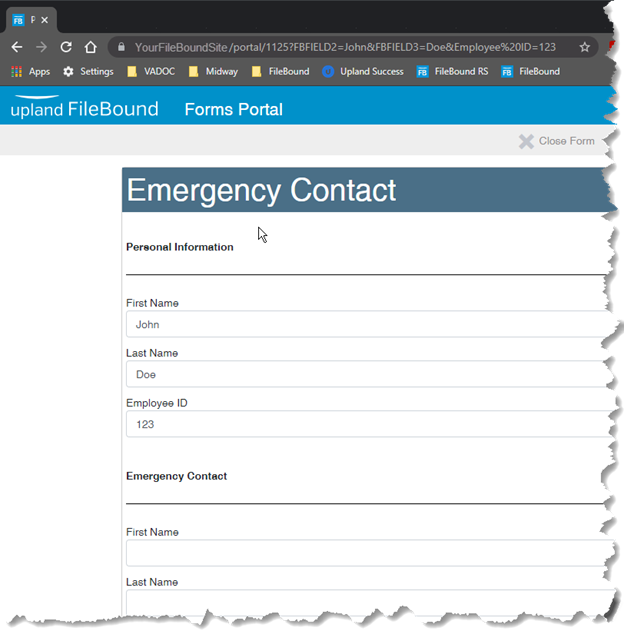
To configure this URL, do the following:
- Find the URL of the forms portal.
- e.g. https://YourFileBoundSite/portal
- Add the form ID so that the user automatically opens the appropriate form.
- e.g. https://YourFileBoundSite/portal/100
- To prepopulate a field
- Find the NAME of the field to prepopulate. The field does not need to be a mapped field and this process can be used for fields that will generate extra data or e-form data.
- Add a ? to the URL, followed by the name of the field you wish to populate
- e.g. https://YourFileBoundSite/portal/100?FBFIELD2
- Add an = to the URL, followed by the value you wish to populate
- e.g. https://YourFileBoundSite/portal/100?FBFIELD2=John
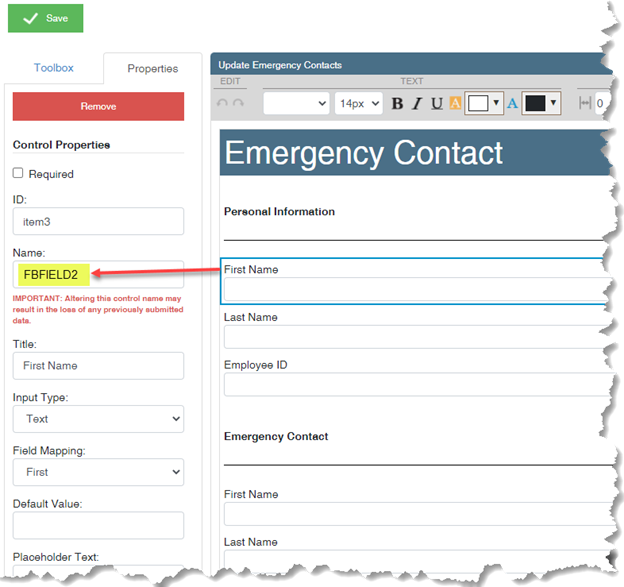
- e.g. https://YourFileBoundSite/portal/100?FBFIELD2=John
- For each additional field you wish to prepopulate
- Add a & to the URL, followed by the name of the field you wish to populate
- e.g. https://YourFileBoundSite/portal/100?FBFIELD2=John&FBFIELD3
- Add an = to the URL followed by the value you wish to populate
- e.g. https://YourFileBoundSite/portal/100?FBFIELD2=John&FBFIELD3=Doe
- Add a & to the URL, followed by the name of the field you wish to populate
Note: This process will accept values with spaces, but this can 'break' a hyperlink. To work around this issue, you can replace the space values with %20. This will ensure that the hyperlink used by the user is always a single string.
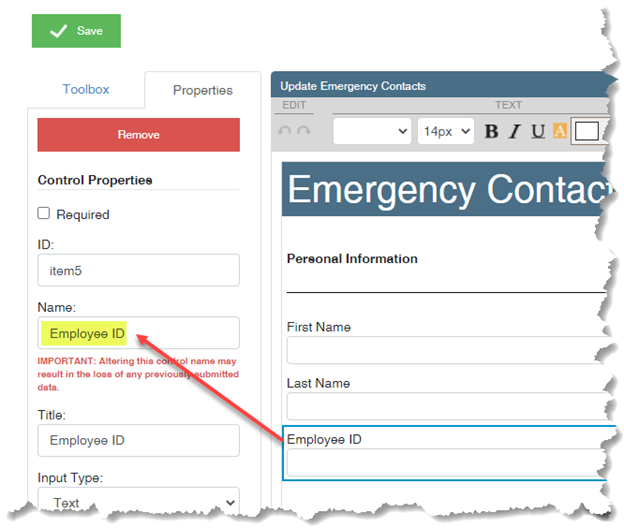
For example, both of the URLs below will result in identical outcomes (the spaces are automatically replaced in the URL when the site is loaded).
https://YourFileBoundSite/portal/100?FBFIELD2=John&FBFIELD3=Doe&Employee ID=123

https://YourFileBoundSite/portal/100?FBFIELD2=John&FBFIELD3=Doe&Employee%20ID=123