- IMS Knowledge Base
- MS Teams Help
-
FileBound
- Add Content
- Active Directory
- Administration
- Automation Processes
- Basic Search & Retrieval
- Capture
- Clipboard
- Connect
- Database
- Document Actions
- DocuSign
- E-Forms
- Enterprise Service
- Full Text Search
- General
- HelloSign
- Https
- Importer Pro
- Installation
- Licensing
- Maintenance
- Office 365
- Records Management
- Reports
- SAML
- Web Viewer
- Windows Viewer
- Workflow
-
Windows Settings
-
MS Teams Help
-
Equipment Guides
-
Scanners
-
Psigen
-
Code Snippets
-
PaperVision
Microsoft Teams - Adding a Participant to an Ongoing Meeting
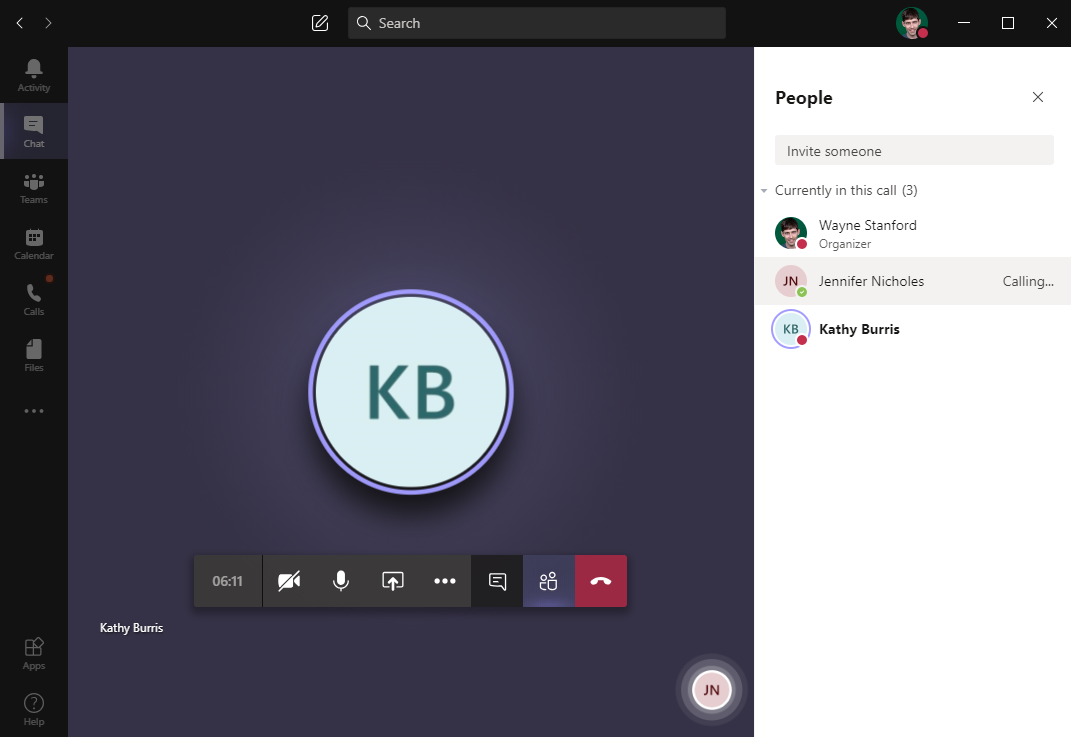
'Show Participant' button options for Microsoft Teams meetings.
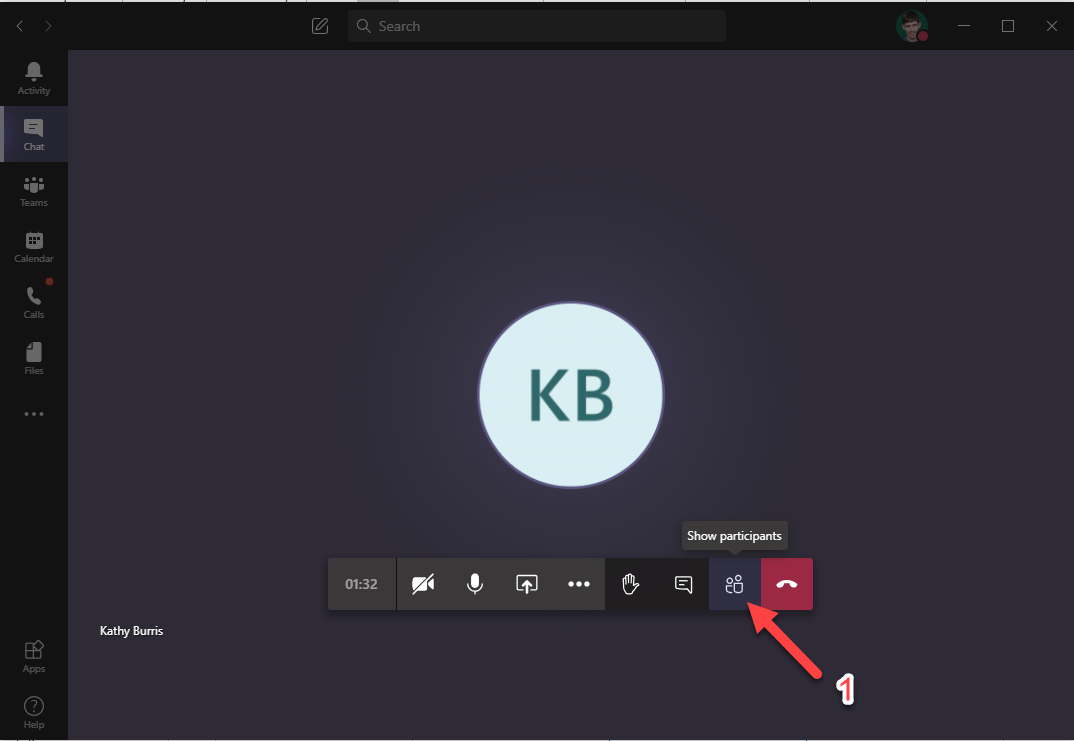
- Click the Show Participants button on the meeting toolbar.
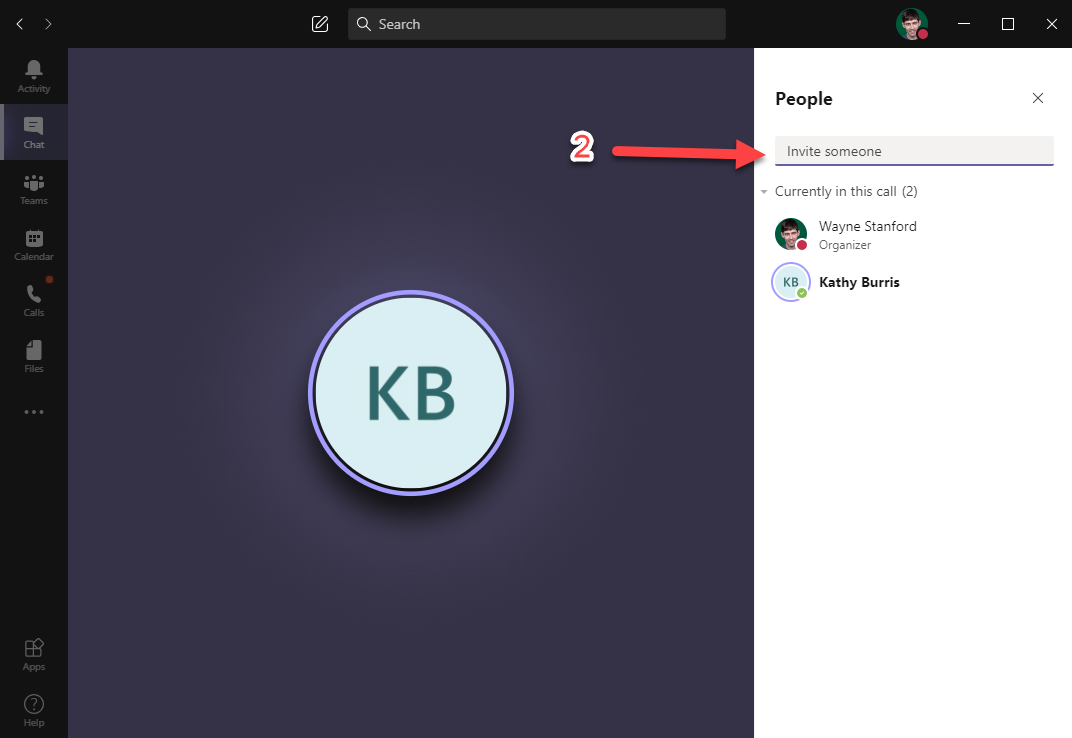
- Click the Invite someone text box to begin typing the name of the person to add.
- Begin typing the name of the person to be added to the meeting.
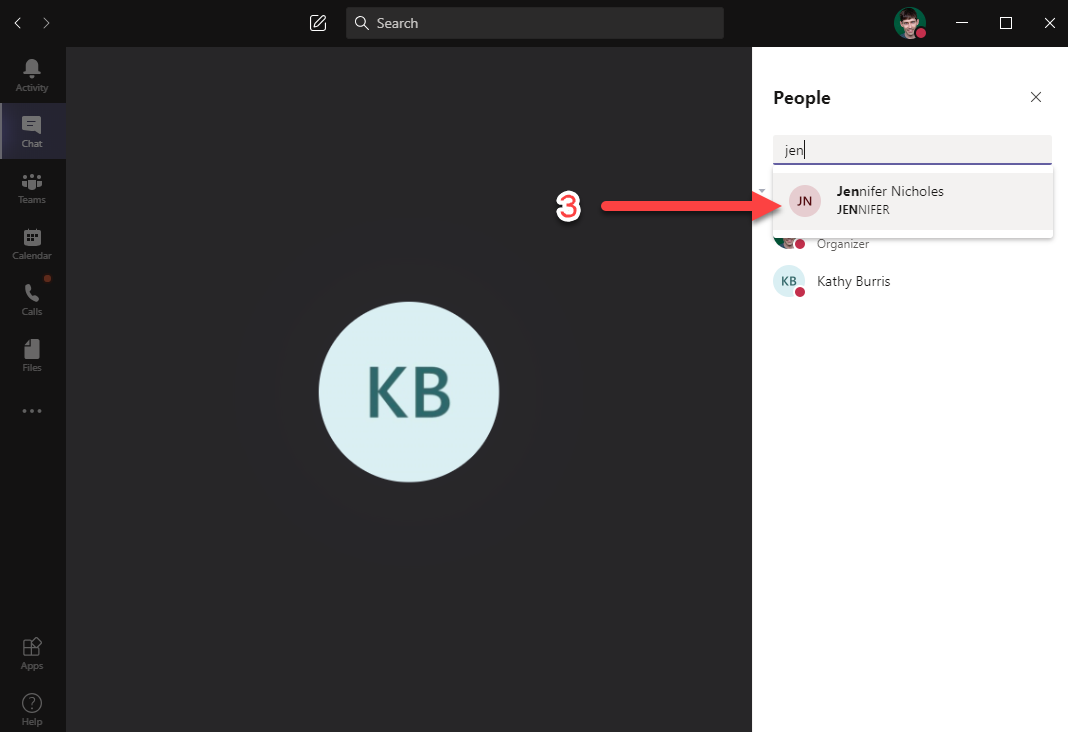
- Press Enter to add the attendee. The attendee will automatically be called.
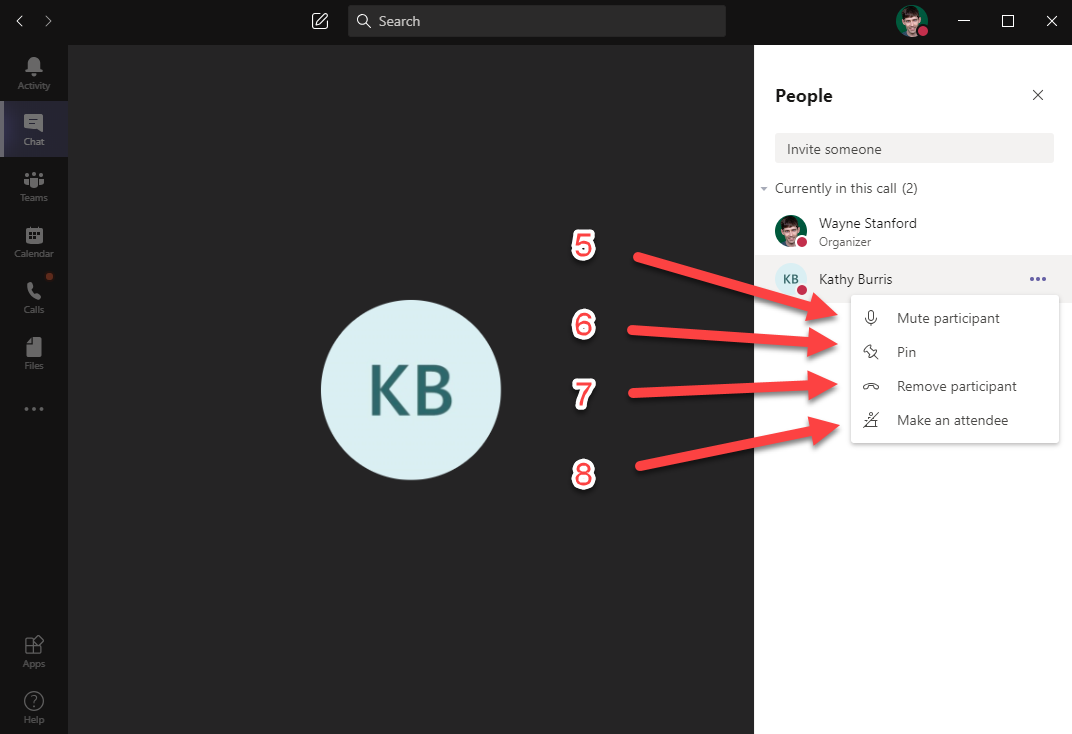
Click the three dots ... to open additional options. - To mute the participant, click the Mute participant option.
- To bring a participant to a full-screen view, click the Pin option.
- To remove a participant, click the Remove participant option.
- To toggle the permission level (Attendee or Presenter ) click the last option.