- IMS Knowledge Base
- FileBound
-
FileBound
- Add Content
- Active Directory
- Administration
- Automation Processes
- Basic Search & Retrieval
- Capture
- Clipboard
- Connect
- Database
- Document Actions
- DocuSign
- E-Forms
- Enterprise Service
- Full Text Search
- General
- HelloSign
- Https
- Importer Pro
- Installation
- Licensing
- Maintenance
- Office 365
- Records Management
- Reports
- SAML
- Web Viewer
- Windows Viewer
- Workflow
-
Windows Settings
-
MS Teams Help
-
Equipment Guides
-
Scanners
-
Psigen
-
Code Snippets
-
PaperVision
How to export all documents for up to 100 Files at a time.
This article provides step by step instructions for using FileBound Connect to export documents for up to 100 files at a time.
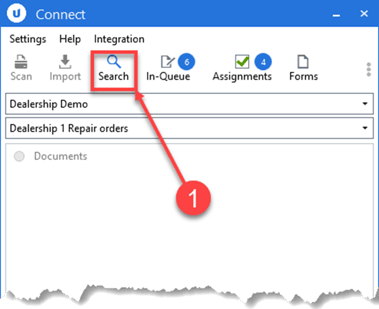
- From FileBound Connect, select SEARCH.
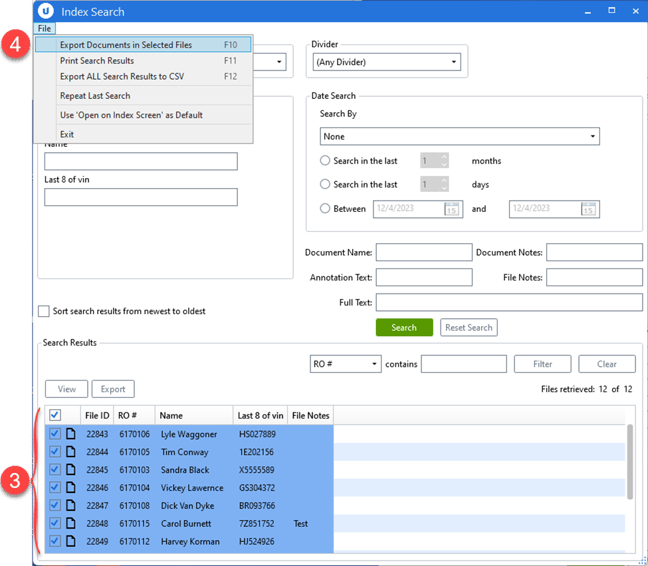
- Seach for the files that contain the documents you want to export.
- In the Search Results section, select the files that have the documents you want to export.
- On the File menu, click Export Documents in Selected Files or press the F10 keyboard shortcut.
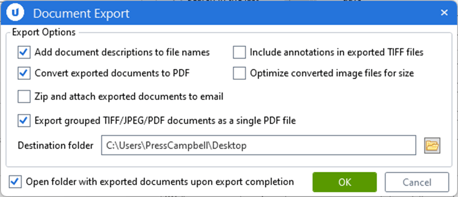
- Select the desired options and Destination folder within the Document Export dialog box and click OK.
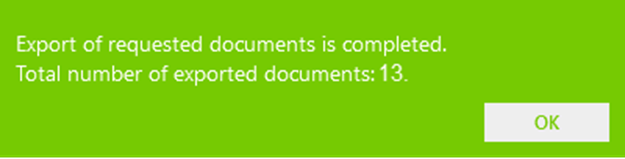
- Once the export is complete you will get a dialog box as shown below indicating the number of documents exported.