- IMS Knowledge Base
- FileBound
- Capture
-
FileBound
- Add Content
- Active Directory
- Administration
- Automation Processes
- Basic Search & Retrieval
- Capture
- Clipboard
- Connect
- Database
- Document Actions
- DocuSign
- E-Forms
- Enterprise Service
- Full Text Search
- General
- HelloSign
- Https
- Importer Pro
- Installation
- Licensing
- Maintenance
- Office 365
- Records Management
- Reports
- SAML
- Web Viewer
- Windows Viewer
- Workflow
-
Windows Settings
-
MS Teams Help
-
Equipment Guides
-
Scanners
-
Psigen
-
Code Snippets
-
PaperVision
How to determine license used for FileBound Capture or Importer Pro.
Follow the instructions below to determine the license key you are using for FileBound Capture or Importer Pro.
- Locate the PC that has Capture or Importer Pro installed.
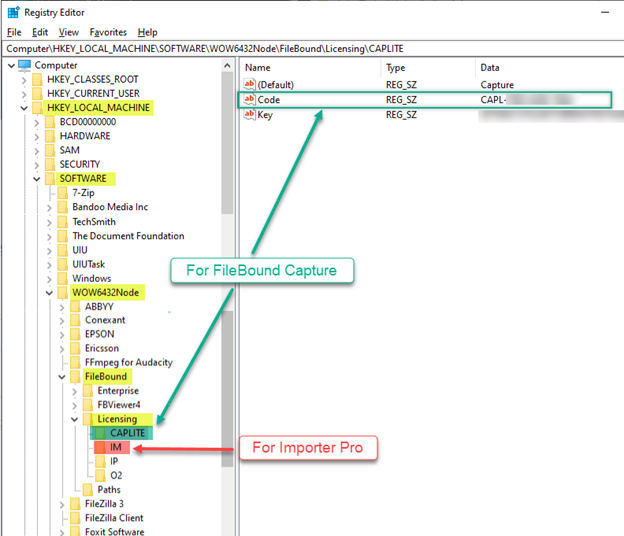
- Open the Registry Editor (regedit.exe) on the PC, then navigate to:
- For FileBound Capture navigate to:
- HKEY_LOCAL_MACHINE\SOFTWARE\Wow6432Node\FileBound\Licensing\CAPLITE
- For Importer Pro navigate to:
- HKEY_LOCAL_MACHINE\SOFTWARE\Wow6432Node\FileBound\Licensing\IP
- For FileBound Capture navigate to:
- The FileBound Capture and/or the Importer Pro license key should be displayed.
- The FileBound Capture key will be in this format: CAP-ITEx-xxxx-xxxx
- The Importer Pro key will be in this format: IPxx-xxxx-xxxx-xxxx