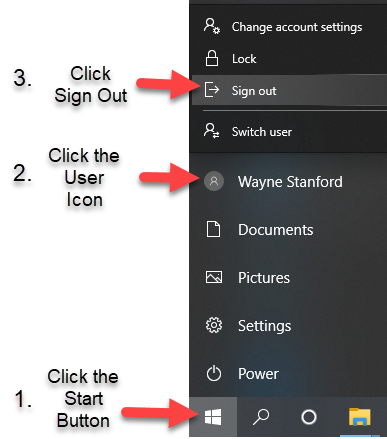
Basic operation.
Turn ON the PC
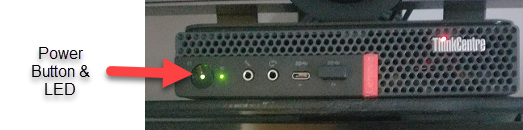
- Check the power indicator on the PC to make sure it is turned on.
- Press and release the power button if the LED is not lit.
Turn on Keyboard & Mouse
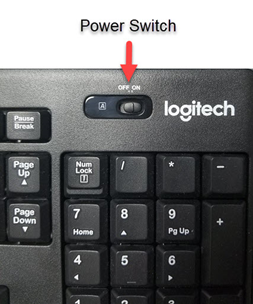
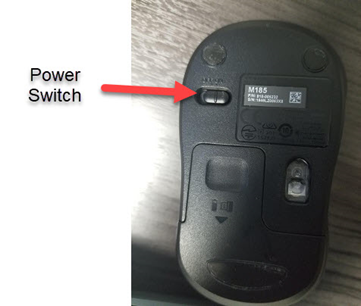
- Ensure the wireless keyboard and mouse are both turned on.
Turn on the TV
- Press and release the power button on the remote to turn on the TV.
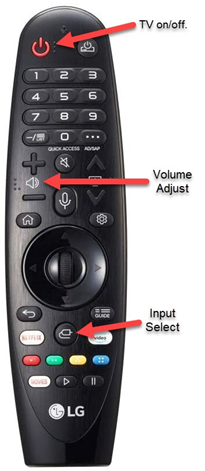
Select HDMI 2 Input
- Press and release the Input Select button on the remote to open the Input Select menu. Please Reference the Remote-Control Diagram on the previous page for the location of the Input Select button! Ensure HDMI 2 has the checkmark, indicating it is the selected input.
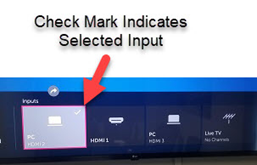
- If HDMI 2 is NOT selected, keep pressing and releasing the Input Select button on the remote until the red border appears around HDMI 2.
- Wait a few seconds for the Input Menu to disappear.
Sign In
- Move the mouse or press a key on the keyboard to make sure the computer is responding to input.
- Press Enter or Click OK on the log in warning to continue to the log in screen.
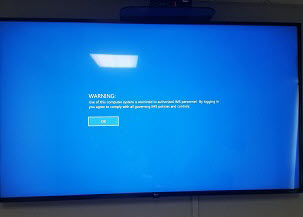
- Sign into the computer with your IMS network credentials, just as you would with your primary computer.
- If you do not know your login username and password, use the generic login:
Username: ConferenceRoom
Password: 4720EastLiberty
Sign Out When Finished!