
- IMS Knowledge Base
- FileBound
- Active Directory
-
FileBound
- Add Content
- Active Directory
- Administration
- Automation Processes
- Basic Search & Retrieval
- Capture
- Clipboard
- Connect
- Database
- Document Actions
- DocuSign
- E-Forms
- Enterprise Service
- Full Text Search
- General
- HelloSign
- Https
- Importer Pro
- Installation
- Licensing
- Maintenance
- Office 365
- Records Management
- Reports
- SAML
- Web Viewer
- Windows Viewer
- Workflow
-
Windows Settings
-
MS Teams Help
-
Equipment Guides
-
Scanners
-
Psigen
-
Code Snippets
-
PaperVision
Active Directory (AD) Enabled Yet Users Still Prompted for Login - Enabling Auto Logon with AD
Users are prompted for login credentials even though Active Directory is integrated. This article outlines how to enable auto login in Internet Explorer with Active Directory.
To enable auto login in Internet Explorer with Active Directory, please perform the following steps:
- Add the FileBound URL to a Security Zone (Trusted Sites). This is done through Internet Explorer Tools > Internet Options, then accessing the ‘Security’ tab
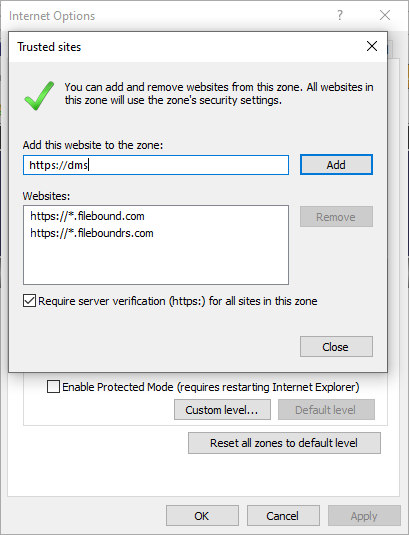
- Modify the security settings for that zone by clicking on Custom Level.
- Scroll down to User Authentication and change the setting to Automatic logon with current user name and password.
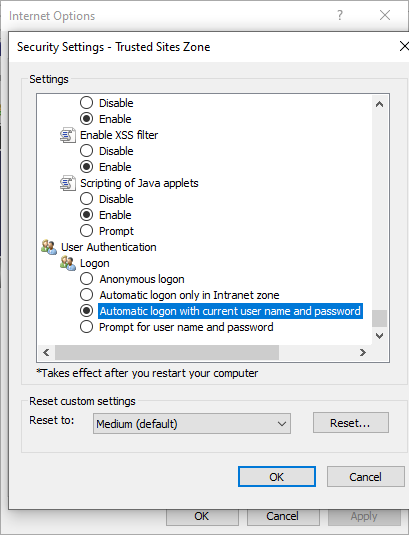
- Ensure Allow active content to run in files on my computer is checked in the advanced tab.
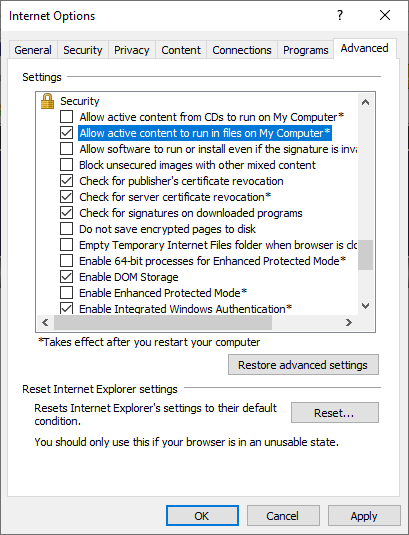
- Close Internet Explorer and reopen FileBound.
- Users should no longer be prompted for their credentials on this PC.